How to Integrate AI-Driven Video Sections for Creative Musicians’ Websites
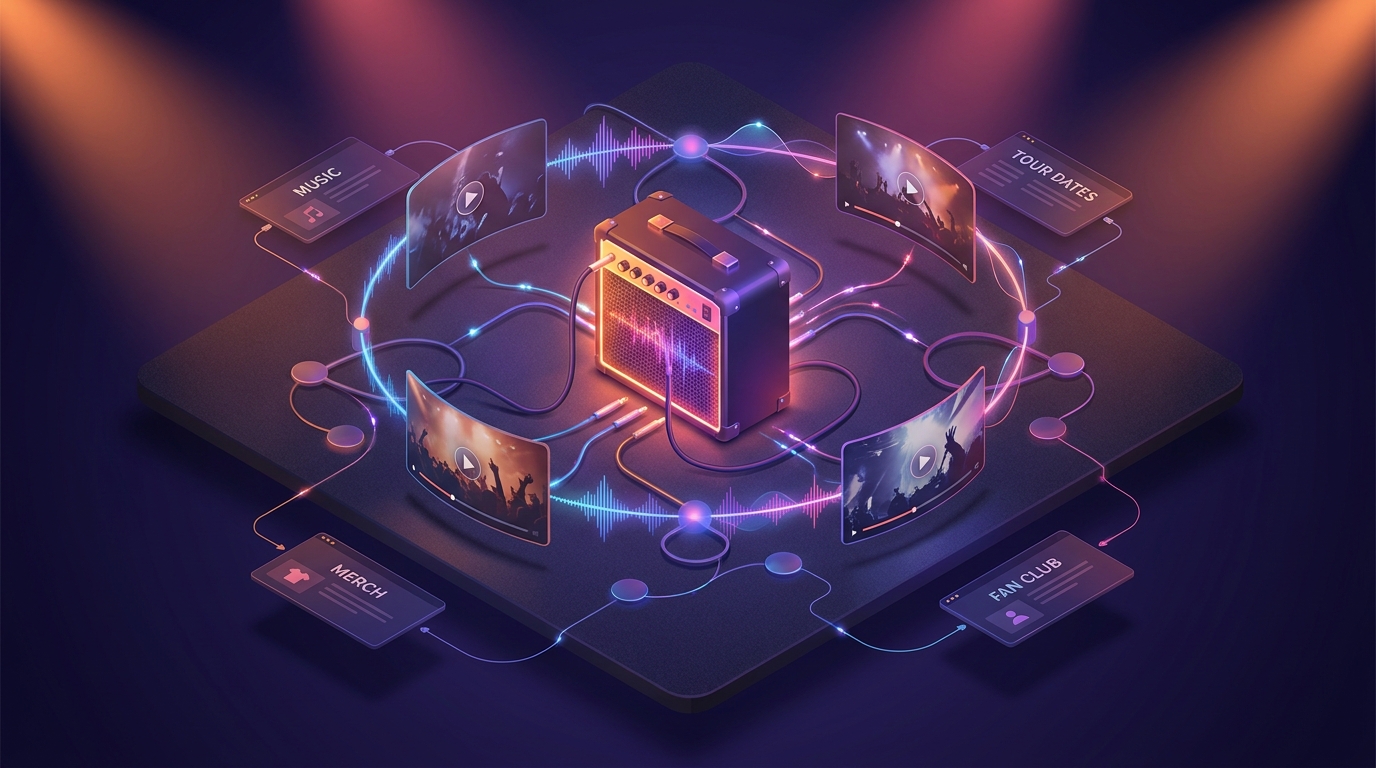
Musicians thrive on creativity, and your website should reflect that energy. Integrating AI-driven video sections can transform a static site into an immersive experience. This step-by-step guide will show you how to use Draftly’s AI features to add cinematic, interactive video components that captivate your audience.
Why AI-Driven Video Sections Matter for Musicians
Dynamic video sections offer more than just visual appeal—they create a storytelling environment that resonates with fans. With Draftly’s AI tools, musicians can:
!how to integrate aidriven video sections for creative musicians websites, tutorials
- Showcase album releases with animated visuals
- Deliver immersive concert previews or tour highlights
- Engage users with personalized, scroll-driven experiences
Step 1: Define Your Video Goals
Before diving into the technical setup, clarity on your objectives is essential. What story do you want to tell?
- Promote an album or single: Use AI to craft visuals synced with your music.
- Announce a tour: Highlight key cities, dates, and behind-the-scenes clips.
- Fan engagement: Create interactive experiences, like “choose your favorite track” videos.
Step 2: Script Your Video Content
AI can enhance your videos, but the narrative starts with you. Draft a script or outline for your video sections.
Key Script Elements
- Opening Hook: A 3-5 second intro to grab attention—like a highlight from your latest gig.
- Core Message: What’s the main takeaway? Keep it concise.
- Call to Action (CTA): Direct fans to stream, buy, or subscribe.
Step 3: Use Draftly’s AI Video Generator
Draftly simplifies video integration with its built-in AI tools. Here’s how to get started:
- Log in to Draftly: Open your project dashboard.
- Navigate to 'Video Sections': Select the option to create a scroll-driven video.
- Upload Assets: Provide album art, concert clips, or music files.
- Customize Visuals: Use AI to generate transitions, animations, and filters that match your theme.
- Preview and Edit: Adjust pacing, overlays, and text captions as needed.
Step 4: Optimize for Performance
A visually stunning site means nothing if it doesn’t load quickly. Here’s how to ensure your AI-driven video sections don’t compromise performance:
- Compress Video Files: Keep file sizes under 8 MB per clip.
- Lazy Load Features: Ensure videos load only when users scroll to them.
- Mobile Responsiveness: Test video sections on both desktop and mobile devices.
Step 5: Add Interactive Fan Elements
Engagement goes beyond visuals—make your videos interactive. Draftly allows you to layer in features like:
- Polls or Quizzes: Ask fans which track they love most.
- Dynamic Links: Direct them to Spotify, Apple Music, or merch pages.
- User-Generated Content (UGC): Let fans upload their clips or reactions.
Adding Interactivity in Draftly
- Select the video you want to enhance.
- Click 'Add Interactivity' in the editor.
- Choose elements: polls, clickable hotspots, or comment sections.
- Assign actions: link to specific pages or trigger animations.
Step 6: Publish and Promote Your Website
Once your video sections are ready, it’s time to go live. But don’t stop there—promotion is key.
- Social Media Teasers: Share clips of your video sections on Instagram or TikTok.
- Email Campaigns: Send a newsletter with links to your new site.
- Collaborate with Influencers: Partner with music bloggers or YouTubers to showcase your site.



