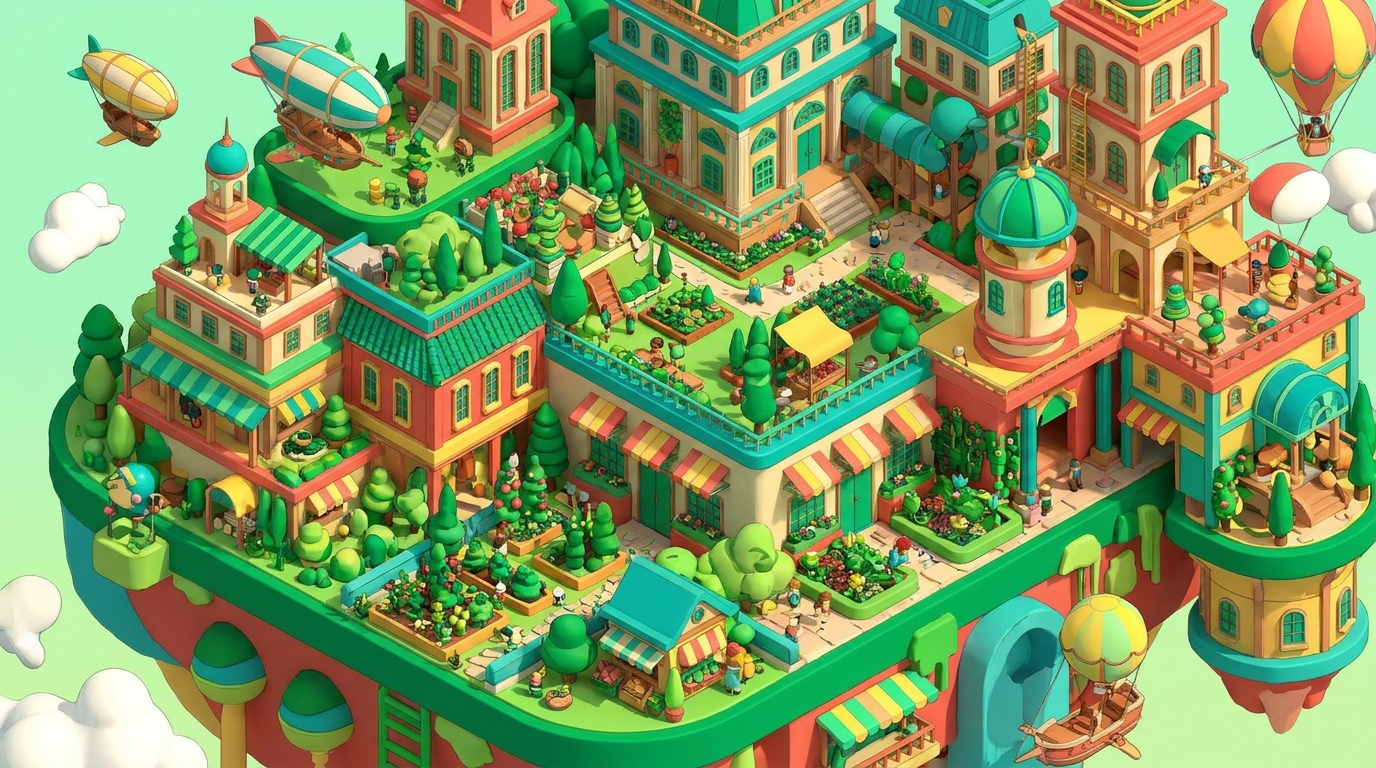
Using Draftly to Create 3D Alumni Event Microsites for Indian Universities
Indian universities are increasingly seeking innovative ways to connect with their alumni. A 3D alumni event microsite can help institutions create engaging, immersive experiences that stand out. With tools like Draftly, you can build a cinematic, scroll-driven microsite in minutes. Here’s a step-by-step guide to help you get started.
Why 3D Microsites Are Perfect for Alumni Events
A well-designed 3D microsite can revolutionize how universities host alumni events. Here’s why:
- Immersive experience: 3D visuals and animations make the event feel more engaging.
- Increased participation: Interactive features like RSVP forms and countdown timers boost attendance.
- Brand consistency: Showcase your university’s legacy with custom fonts, colors, and a brand kit.
For Indian universities, where alumni networks often span across continents, these microsites can connect audiences in a way that traditional event pages cannot.
Step 1: Define Your Event Goals
Before jumping into Draftly, clarify what you want the microsite to achieve. Ask yourself:
- Do you want to increase RSVPs?
- Are you showcasing university milestones or achievements?
- Will you integrate donation options for your alumni?
Step 2: Start with a Clear AI Prompt
Draftly’s AI-powered builder thrives on detailed prompts. Here’s an example of an effective AI input:
"Create a 3D alumni event microsite for XYZ University’s 50th anniversary. Include a cinematic opening animation, RSVP form, event schedule, and a donation section. Use university brand colors and include testimonials from notable alumni."
Tips for a Perfect Prompt
- Be specific about the elements you need—like video backgrounds or interactive forms.
- Include your university’s brand guidelines.
- Highlight any must-have features, such as a countdown timer or donation module.
Step 3: Customize Your 3D Design
After Draftly generates your microsite, refine the design:
- Colors and fonts: Match your university’s identity by customizing the site’s palette and typography. Learn how in our tutorial on customizing fonts and colors in Draftly.
- Animations: Use subtle scroll-triggered animations to highlight key sections, such as the event schedule. Refer to Draftly’s animation guide for more tips.
- Imagery: Upload high-quality images of campus landmarks, past events, or alumni achievements. If you need visuals, leverage the AI image generation feature in Draftly.
Key Sections to Include
- Hero Section: A stunning 3D animation of the university crest or campus.
- Event Details: Add dates, venue, and a scroll-driven schedule.
- RSVP Form: Capture attendee data seamlessly.
- Alumni Stories: Highlight testimonials or success stories.
- Donation Call-to-Action: Encourage contributions with secure payment integration.
Step 4: Add Interactive Features
Interactive elements keep alumni engaged. Here’s how to integrate them:
- RSVP forms: Use the Draftly Forms feature to create a high-conversion RSVP section.
- Countdown Timer: Build anticipation by adding a timer. See our guide to adding countdown timers in Draftly.
- Live Chat: Integrate tools like WhatsApp for real-time event inquiries. Learn more in our guide on adding WhatsApp chat to your Draftly site.
Step 5: Test and Publish
Before making the microsite live, test its performance:
- Mobile responsiveness: Ensure the site looks great on smartphones. Draftly automatically optimizes for mobile, but it’s worth testing using our mobile testing guide.
- Page speed: Use Draftly’s built-in analytics to maintain a fast-loading site. For a deeper dive, check out our site speed optimization tips.
- Accessibility: Ensure the site meets accessibility standards to include all alumni. Learn more in our post on accessibility in web design.



