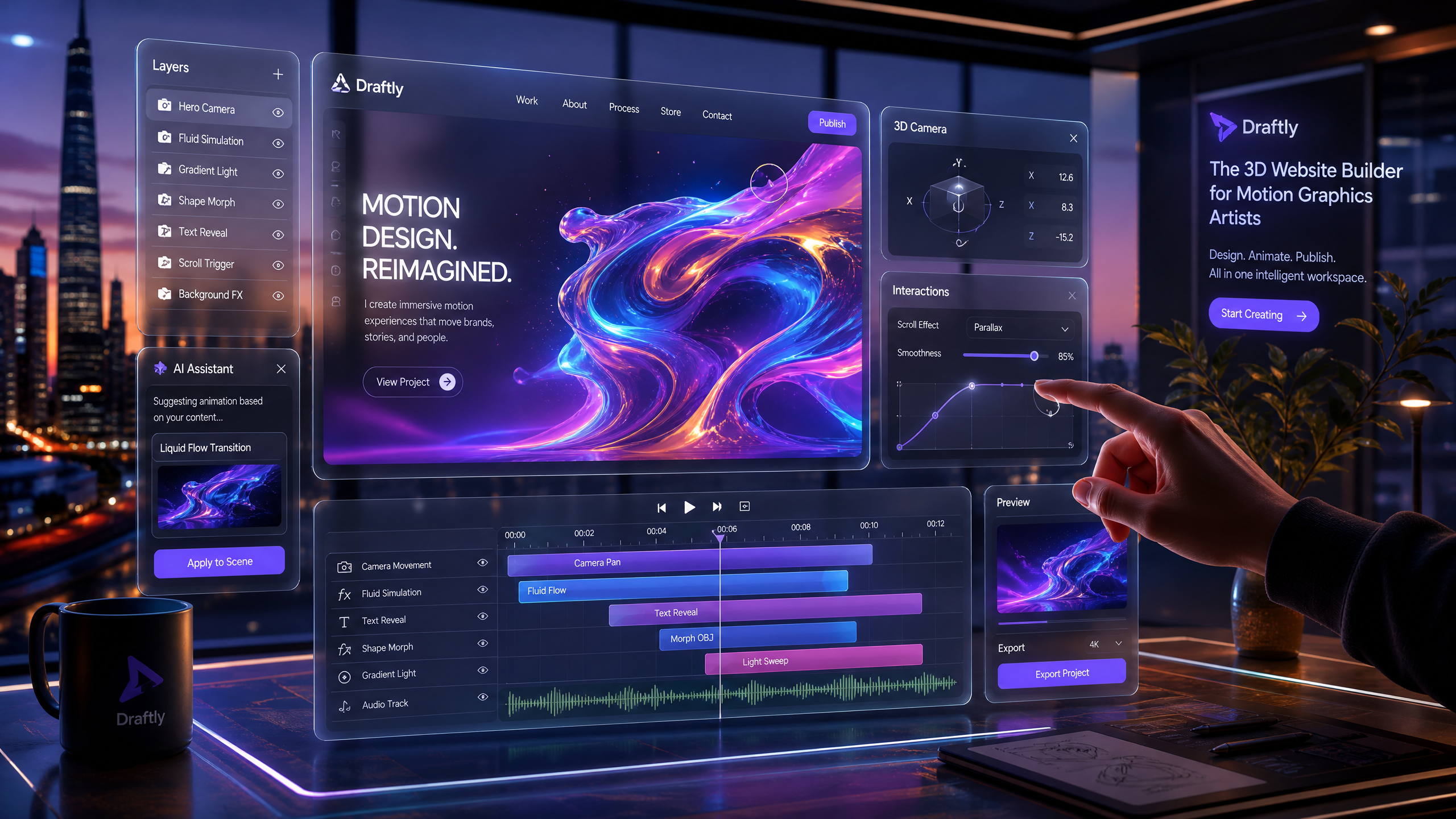
Using Draftly to Create Stunning Portfolios for Motion Graphics Artists
Motion graphics artists need websites as dynamic as their work. With Draftly, you can transform a single prompt into a visually stunning, cinematic portfolio that showcases your skills. This guide breaks down how to create a professional portfolio step-by-step.
Why Draftly Is Ideal for Motion Graphics Portfolios
Creating a portfolio that mirrors the energy of motion graphics can be challenging. Draftly’s AI-driven 3D website builder makes it easy by combining scroll-driven storytelling, dynamic animations, and customizable templates.
!using draftly to create stunning portfolios for motion graphics artists, product
- Cinematic storytelling: Craft portfolios that feel like Hollywood trailers with Draftly Motion Pass.
- AI-generated content: Let Draftly create text and visuals specifically tailored to your work.
- Customizable animations: Use Draftly Page Transitions and Section Animations to add movement without overwhelming visitors.
Step 1: Setting Up Your Draftly Account
Before diving into design, start by creating a free Draftly account.
- Visit the Draftly website and sign up.
- Choose “Portfolio” as your site purpose when prompted.
- Enter a brief description of your work, such as “Dynamic motion graphics for film and advertising.”
- Let Draftly’s AI generate a starter template for your portfolio.
Pro Tip: Use AI Image Tools
Enhance your site visuals with AI Image Generation in Draftly. Upload your motion graphics or let Draftly create complementary visuals.
Step 2: Structuring Your Portfolio
An effective motion graphics portfolio tells a story. Use these key sections to organize your site:
- Hero Section: Showcase a looped video or animation as the first impression. Use the Draftly Motion Pass Guide for a cinematic hero video.
- Project Gallery: Feature your top projects with interactive previews.
- About Me: Share your expertise, tools you use, and industries you serve.
- Client Testimonials: Add animated quotes or video feedback.
- Contact Form: Make it easy for potential clients to reach you.
How to Add Sections
- Open the Draftly editor.
- Navigate to the Draftly Section Library.
- Select blocks like “Video Gallery,” “Image Carousel,” or “Animated About Us.”
- Drag and drop sections into your site.
Step 3: Adding Motion Graphics Content
Your portfolio should feel alive. Here’s how to incorporate your work seamlessly:
- Upload Videos: Use the Media Manager to upload your motion graphics. Follow steps in Managing Media and Files in Draftly to optimize file size.
- Embed Showreels: Use Draftly’s video block to showcase your best work.
- Interactive Previews: Add hover effects or click-to-play features using Draftly’s animation tools.
- Custom Backgrounds: Use parallax scrolling to create depth.
Step 4: Optimize Your Portfolio for Mobile
Since 62% of internet traffic comes from mobile devices, it’s essential to ensure your portfolio looks great on smaller screens.
- Use the “Preview on Mobile” feature to test responsiveness.
- Refer to the Testing Your Draftly Site on Mobile Before Launch guide for tips.
- Simplify navigation: Use sticky headers and dropdown menus.
Step 5: Polishing and Launching
Before publishing, make sure your portfolio is polished and optimized. Here’s a checklist:
- SEO Optimization: Use the Draftly SEO Panel Guide to optimize page titles and descriptions.
- Speed Test: Use Draftly Site Speed Optimization tools to ensure fast loading times.
- Content Review: Check for typos and consistency in font styles.


