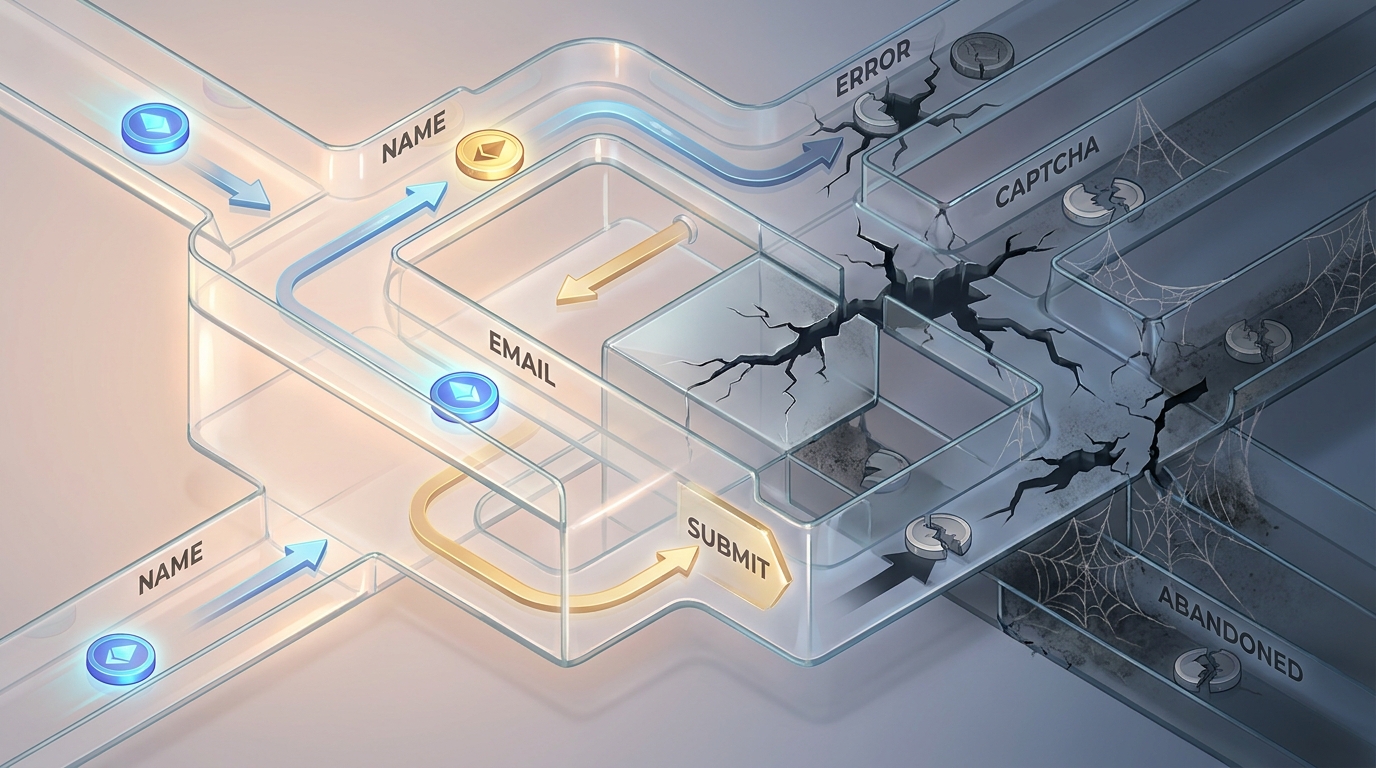
Your website’s form is the final handshake. It’s the moment a passive visitor decides to become an active lead. Yet, data from the Baymard Institute shows that nearly 70% of users abandon forms before completion. This isn't just a missed click; it's lost revenue, a broken conversation, and a direct hit to your bottom line. The culprit is almost always friction — the psychological resistance your form creates. Effective website form design is not about aesthetics; it's a masterclass in user psychology and conversion science, and getting it right can realistically double your submissions.
Every form field you add is a micro-commitment you demand from your user. Too many demands, and they walk away. The key is to design a seamless experience that feels less like an interrogation and more like a helpful conversation. Using the right tools, like the built-in Draftly Forms, you can build a powerful engine for lead generation right on your site. This guide breaks down the data-backed principles to help you do just that.
The Psychology of Form Friction
Before a user fills out your form, they perform a rapid, subconscious cost-benefit analysis. The 'benefit' is what you promise (a demo, a newsletter, a quote). The 'cost' is the time and mental effort required to complete the form, plus any privacy concerns. If the perceived cost outweighs the benefit, they abandon the process.
!website form design reduce friction and double submissions, product
Cognitive Load
This is the mental processing power required to use a product. A form with a confusing multi-column layout, unclear field labels, or an overwhelming number of questions creates high cognitive load. Users are busy and have limited attention spans; a complicated form is an easy excuse to close the tab.Privacy and Trust
Every piece of information you request, especially personal data, raises a red flag. Asking for a phone number, for instance, has been shown to decrease conversion rates by up to 5%. Why? Because users immediately weigh the risk of spam calls against the value of your offer. If you haven't built sufficient trust, they won't share their data.7 Principles for High-Converting Website Form Design
Optimizing your forms is one of the highest-leverage activities you can undertake to improve your website's performance. Here are seven principles grounded in user behavior data.
1. Less is More: The Power of Single-Column Layouts
Your user's eyes should follow a straight line from the top of the form to the submit button. Multi-column layouts disrupt this flow, forcing the user's eyes to zig-zag, which increases completion time and the likelihood of errors.* Why it works: A single column creates a clear, logical path. It's how we're taught to read and process information.
* The data: Research by CXL Institute found that users complete single-column forms an average of 15.4% faster than multi-column forms. Faster completion means less time for second-guessing.
* Mobile-first: On a mobile screen, a single-column layout is non-negotiable. Designing this way from the start ensures a consistent and user-friendly experience across all devices.
2. Ditch the Clutter: Only Ask for What You Need
This is the golden rule of form design. Every additional field increases friction and reduces your conversion rate. Vigorously audit your form fields with one question: "Is this information absolutely essential to take the next step with this lead?"* The data: HubSpot famously increased their conversion rate by 120% by reducing their form fields from 11 to just 4.
* Practical takeaway: Do you really need their company size, title, and fax number for a simple newsletter signup? Probably not. You can always gather more information later in the customer journey, a practice known as progressive profiling.
3. Clear and Concise: Labels and Placeholders
Clarity is king. Users should know exactly what information is required in each field without a moment's hesitation.* Top-aligned labels: Place your labels directly above the input field. This is the most-scanned position and works best on mobile. It keeps the label visible even when the user is typing in the field.
* The placeholder trap: Avoid using placeholder text (the gray text inside a field) as a label. It disappears as soon as the user starts typing, forcing them to rely on memory. This increases errors and frustration. Use placeholders only for optional examples, like "e.g., john.doe@example.com".
4. Guide the User: Smart Defaults and Input Types
Make the process as easy as possible by doing some of the work for your user. Small technical details can have a huge impact on user experience.* Use HTML5 input types: Specify the type of input for each field (``, ``, ``). This automatically brings up the correct keyboard on mobile devices (e.g., the '@' symbol for email, or a number pad for phone numbers).
* Inline validation: Don't wait until the user clicks "Submit" to tell them they made an error. Real-time validation provides immediate feedback, showing a green checkmark for correct entries and a red 'X' for errors. This simple feature can increase form submissions by 22%.
5. Break It Down: The Magic of Multi-Step Forms
If you absolutely need to collect a lot of information, don't present it all at once. A 15-field form is intimidating. Breaking it into 3-4 steps with a few questions each is far more approachable.* Psychological principle: This leverages the Zeigarnik effect — people are more likely to finish a task they've already started. Once they complete the first step, they feel invested and are more likely to see it through.
* The data: Venture Harbour reported a conversion lift of up to 300% by switching from a single, long form to a multi-step format.
* Best practice: Always include a progress bar. This manages user expectations by showing them how close they are to the finish line.
6. The Final Hurdle: The Submit Button
Your submit button is the final call to action. Its design and copy can make or break your conversion rate.* Descriptive copy: Replace a generic word like "Submit" with value-oriented text. Instead of "Submit," try "Get My Free Quote," "Download the Guide," or "Start My Trial." This reminds the user of the benefit they're about to receive.
* Visual prominence: The button should stand out. Use a contrasting color that draws the eye and clearly indicates it's the final step. For more on this, check out our guide on CTA design tips.
* Provide feedback: When a user clicks the button, give them immediate visual feedback, such as a loading spinner. This confirms the form is working and prevents them from clicking multiple times.
7. Build Trust: Security and Social Proof
Users are more cautious than ever about their data. Reassure them that their information is safe and that your offer is legitimate.* Trust signals: Add security logos (like Norton or McAfee), an SSL certificate icon, and a link to your privacy policy near the form.
* Reassurance copy: A simple sentence like "We'll never share your email" can significantly reduce anxiety.
* Social proof: If relevant, include a short testimonial or logos of well-known clients near the form to build credibility.
Beyond the Form: The Post-Submission Experience
A successful submission is just the beginning of the relationship. What happens next is critical for nurturing that new lead.* Confirmation: Immediately redirect users to a dedicated thank-you page or display a clear success message. This confirms their submission went through.
* Set expectations: On the thank-you page, tell them exactly what will happen next. For example: "Thanks for reaching out! A member of our team will contact you within one business day."
* Manage leads effectively: Capturing the lead is only half the battle. The next step is managing and converting inquiries efficiently, ensuring a prompt and professional follow-up that turns interest into revenue.
Optimizing your website form design is a direct investment in your conversion rate. By methodically reducing friction and building trust, you can transform your forms from a necessary evil into your most powerful lead generation tool.
Ready to build a website with forms designed to convert from the ground up? Generate your cinematic, scroll-driven site with Draftly in minutes.


