How to Use Draftly’s Client Feedback Features to Perfect Your Web Design
Draftly's client feedback features are a game-changer for web designers looking to streamline collaboration and improve their output. By integrating easy-to-use feedback loops directly into the Draftly platform, you can ensure your designs align perfectly with client expectations. Here’s a step-by-step guide to mastering these tools.
Why Client Feedback Matters in Web Design
Client feedback is critical to creating websites that resonate with a brand’s vision and audience. Without it, you risk multiple revision cycles, misaligned expectations, and wasted time. By utilizing Draftly's features, you can:
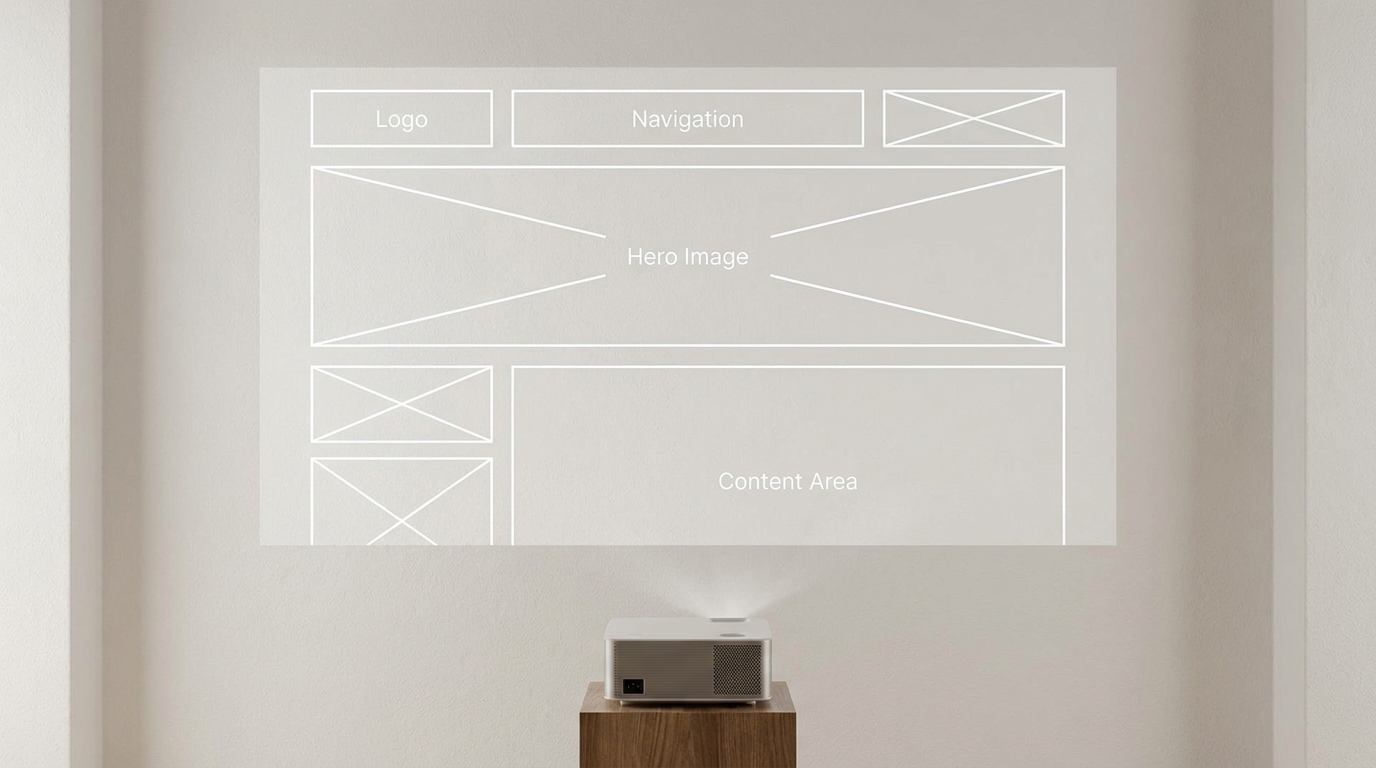
!how to use draftlys client feedback features to perfect your web design, product
- Reduce revision cycles by up to 60%
- Align designs with business objectives from the start
- Build trust and collaboration with your clients
Setting Up Feedback on Your Draftly Site
Step 1: Share Interactive Previews
Draftly allows you to share live, scrollable previews of your design. Here’s how to do it:
- Go to your project dashboard and click “Share Preview”.
- Enable client commenting by toggling the “Feedback Mode” option.
- Share the unique preview link with your client.
Step 2: Use Highlighted Feedback for Specific Edits
Draftly’s feedback mode highlights client comments directly on the prototype. This eliminates guesswork and ensures clarity. Key features include:
- Pinpoint Comments: Clients can click on any section to leave a note.
- Threaded Discussions: Reply to comments to clarify or confirm suggestions.
- Edit History: Track changes based on client input.
Responding to Feedback and Implementing Changes
Step 3: Prioritize Changes Using AI Insights
Draftly’s AI analyzes client comments and suggests prioritization. For example, if multiple clients point out navigation issues, the AI flags this as a high-priority fix.
- Navigate to the “Feedback” tab on your dashboard.
- Use the AI Summary tool to group similar feedback.
- Mark high-priority changes and address them first.
Step 4: Edit in Real-Time with AI Chat
Draftly’s AI Chat streamlines the editing process. Here’s how to use it:
- Open the feedback panel and select a comment.
- Type a command like “Change button color to blue” or “Make text in this section bold.”
- Watch changes apply instantly in the live preview.
Finalizing the Design with Client Approval
Step 5: Request Client Approval
Once changes are implemented, requesting final approval is a breeze:
- Send a notification via the Draftly dashboard.
- Allow clients to mark sections as “Approved” or “Needs Changes.”
- Use the Approval Summary feature to confirm all sections are finalized.
Step 6: Publish the Final Version
After approval, publishing your site is a one-click process:
- Navigate to the “Publish” tab.
- Confirm the domain and click “Go Live.”
- Use Draftly’s analytics tools to monitor site performance post-launch.
Best Practices for Collecting Client Feedback
- Set Clear Expectations: Define feedback timelines and scope to avoid scope creep.
- Be Specific: Encourage clients to focus on actionable items like color schemes or layout.
- Use AI Tools: Let Draftly’s AI handle repetitive changes so you can focus on design.


